
You can join virtual visits on your desktop, but you’ll get the most out of Oshi via the mobile app. Through the app, you can access virtual visits, appointment scheduling, appointment summaries, and chat messaging for support between visits.
-
-
-
To download the Oshi Health mobile app, visit the Apple App or Google Play Store, based on the type of mobile device you have. Follow the links to go directly to the Oshi Health app within the store, or search for Oshi Health in your device’s app store.
For an Apple mobile device, follow these steps to download:
- Navigate to the Apple App Store
- Using the search bar, search for “Oshi Health”
- Select “Download” at the top of the page
- Navigate to your home screen and open the Oshi Health mobile app
For an Android device, follow these steps to download:
- Navigate to the Google Play Store
- Using the search bar, search for “Oshi Health”
- Select “Download”
- Navigate to your home screen and open the Oshi Health mobile app
-
To enable audio and video, follow these instructions for an Apple device or these instructions for an Android device.
-
To enable push notifications for appointment reminders, messages from your care team, and more, follow the instructions below.
For an Apple mobile device, refer to Apple support or follow these steps:
1. Go to Settings
2. Select Notifications
3. Find and select the Oshi Health mobile app
4. Tap the button at the top of the screen that says Allow NotificationsFor an Android device, refer to Android support or follow these steps:
1. Go to Settings
2. Select Applications
3. Select Application Manager
4. Find and select the Oshi Health mobile app
5. Tap On to Allow Notifications -
To reinstall the Oshi Health mobile app, follow the steps below based on the type of mobile device you have.
For an Apple mobile device, follow these steps to reinstall the Oshi Health app:
- Navigate to the Oshi Health mobile app on your home screen
- Push and hold the app
- Select Remove app from the pop-up menu
- Navigate to the Apple App Store
- Using the search bar, search for “Oshi Health”
- Select Download at the top of the page
- Navigate to your home screen and open the Oshi Health mobile app
For an Android mobile device, follow these steps to reinstall the Oshi Health app:
- Navigate to the Oshi Health mobile app on your home screen
- Push and hold the app
- Select Uninstall app from the pop-up menu
- Navigate to the Google Play Store
- Using the search bar, search for “Oshi Health”
- Select Download at the top of the page
- Navigate to your home screen and open the Oshi Health mobile app
-
To update the Oshi Health mobile app, follow the steps below for your device type.
For an Apple mobile device, follow these steps to update the Oshi Health app:
- Navigate to the Apple App Store
- Search “Oshi Health”
- Select the Oshi health mobile app
- Select Update
For an Android mobile device, follow these steps to reinstall the Oshi Health app:
- Navigate to the Google Play Store
- Select your profile image at the top of the page
- Select Manage apps and device
- Scroll down to the Oshi health mobile app
- Select Update
-
To reset your password, open the Oshi Health mobile app and follow the steps below:
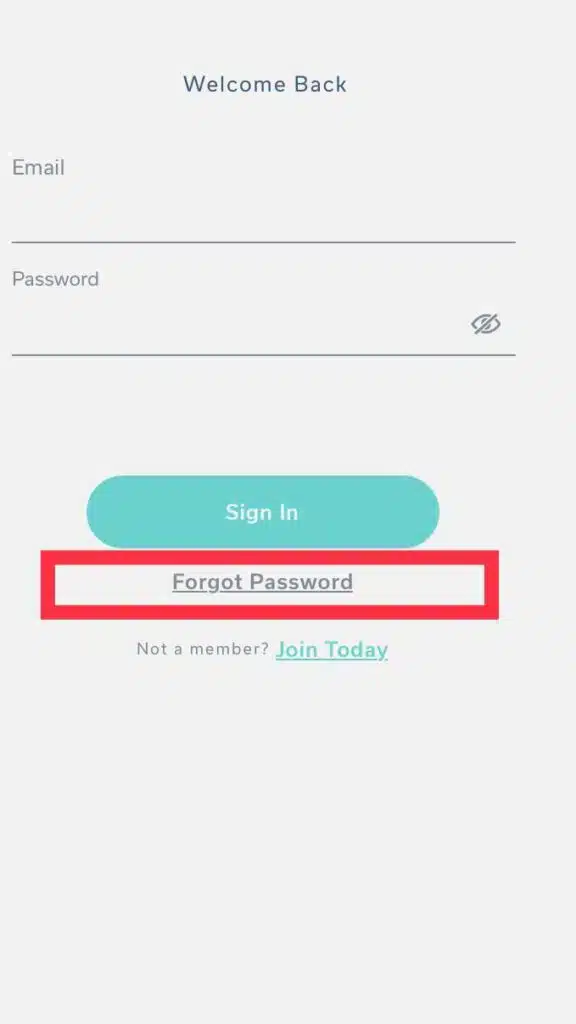
Select ‘Forgot Password’ on the Login Screen
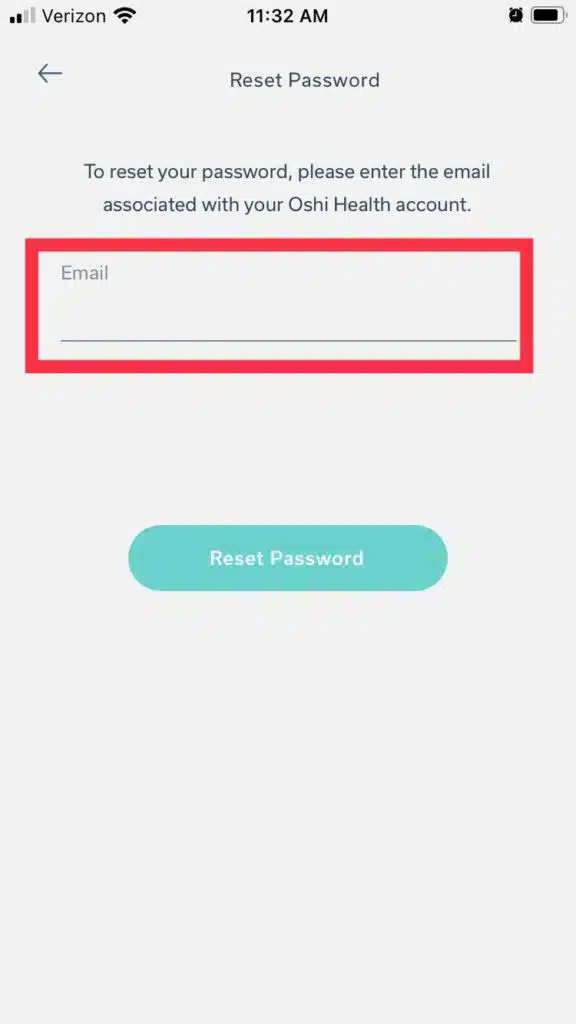
Enter the email address associated with your Oshi Health account
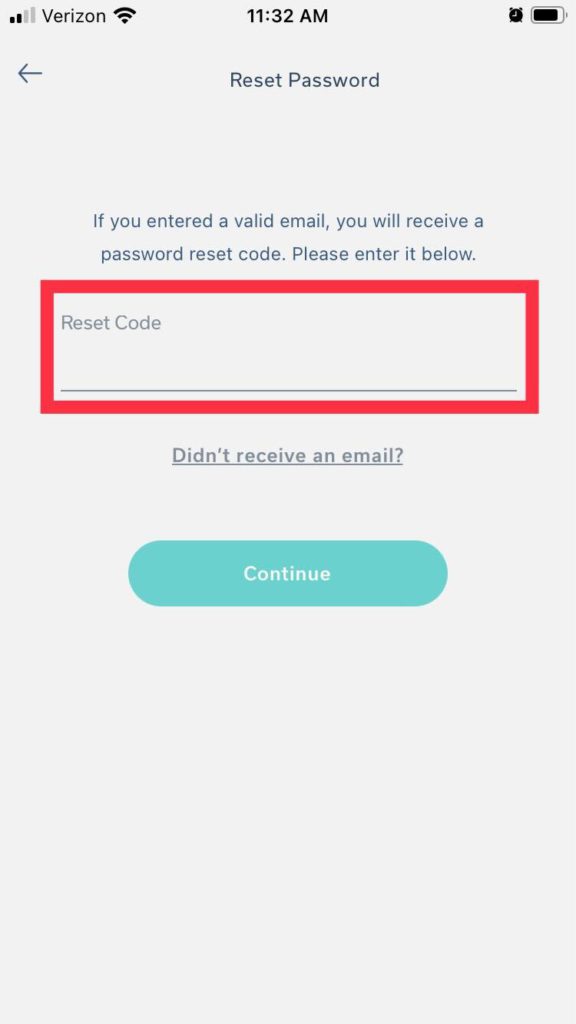
Check your email for a password reset code. Then, enter your reset code and click ‘Continue’
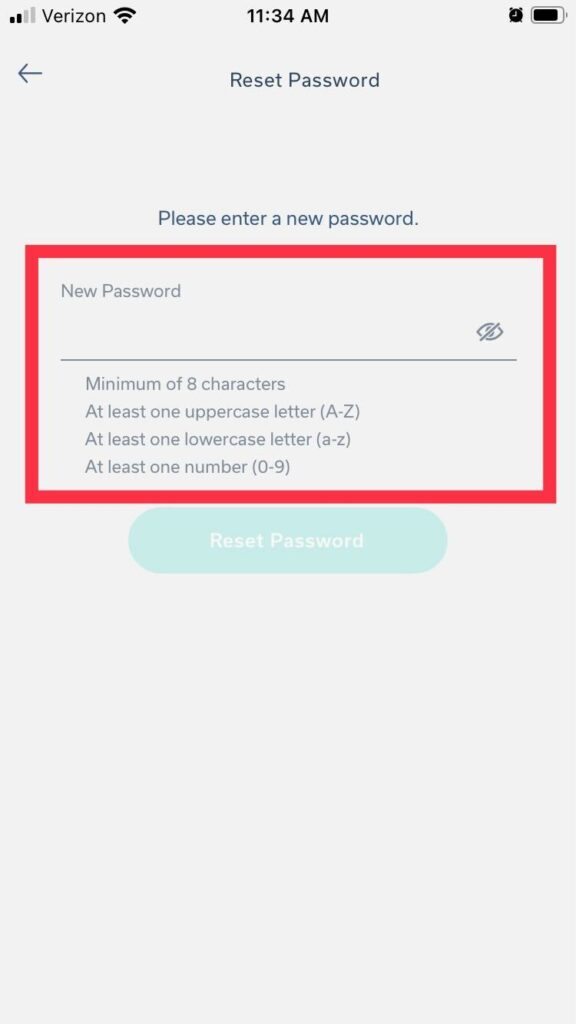
Create a new password and click ‘Submit’
-

